How to Set Up Claude Tag in Slack (Step by Step)
Setting up Claude Tag in Slack takes about 15 minutes and four steps: pair Claude with your Slack workspace, connect the tools each channel needs, set a monthly spend limit, and test in a private channel.
One thing first: only a Slack Primary Owner or Owner can set up Claude Tag. The Admin role can't — so confirm who that is before you promise a rollout.
For Claude Team & Enterprise · Beta · ~15 min
Are you ready to set up Claude Tag?
Most Claude Tag setups stall for one of three reasons: you're not a Slack Owner, you're not on a supported plan, or you haven't decided which channels Claude should join. Check these three things now so you don't get halfway and hit a wall.
Your result
Setup requires a Slack Primary Owner or Owner — the Admin role can't complete it. Find your Owner before you start, or you'll stall on step 1.
This check runs entirely in your browser — no data leaves your device.
Who can set up Claude Tag, and what you need first
To set up Claude Tag you need two things: a Slack Primary Owner or Owner to run it (an Admin can't), and a Claude Team or Enterprise plan. Have your list of target channels ready, and know which tools — GitHub, Drive, a CRM, a warehouse — you actually want Claude to use.
The setup itself is fast, but it's an organization-level change, so do a little homework first. Confirm who holds the Slack Owner role — this is the single most common reason a Claude Tag setup stalls, because Admins genuinely can't complete it.
Decide whether you're rolling out to the whole workspace or a specific set of channels. List the connectors you want live on day one, and leave the rest for later. And pick one low-risk private channel to test in before you let the whole company start tagging @Claude.
Confirm who holds the Slack Owner role
The single most common reason a setup stalls.
Decide your scope
Whole workspace, or a specific set of channels.
List the connectors for day one
GitHub, Drive, a CRM, a warehouse — leave the rest for later.
Pick one low-risk private channel to test in
Before the whole company starts tagging @Claude.
How to set up Claude Tag in 4 steps
These are the four steps Anthropic lists to get Claude Tag running: pair it with Slack, give it tool access, set a spend limit, and test it. Below each one is exactly what to click and type.
Pair with your Slack workspace
Install from the Slack Marketplace, then run the connect command and paste the 15-minute pairing code into your admin settings.
@Claude connectGive Claude access to your tools
Connect apps with service-account credentials in an access bundle. Open only what this Claude needs. GitHub connects separately, after setup.
Set a monthly spend limit
Pick a preset, Unlimited, or custom. Alerts at 75% and 95%. When the cap is hit, Claude stops rather than degrades.
$100–$1,000Test in a private channel
Invite Claude, then ask it to summarize. Watch it post its stages in the thread. Keep ambient mode off for this test.
/invite @ClaudePair with your Slack workspace
Install the Claude app from the Slack Marketplace, then have a workspace Owner run @Claude connect in any channel. Claude replies with a pairing code that's valid for 15 minutes — paste it into the setup screen at claude.ai/admin-settings/claude-tag before it expires. Choose whether to deploy to the whole workspace (Anthropic's recommended default) or a specific set of channels. You're done when the workspace shows Connected.
Give Claude access to your tools
This is where you decide what Claude Tag can actually touch. Connect apps — Drive, calendars, a CRM, a data warehouse — using service-account credentials, grouped into an access bundle (the default is named "Slack default"). Open only the connectors this Claude should act on, and scope them to the channels that need them. Note: GitHub connects separately after setup, not in this step. You're done when at least one connector shows a green status alongside Slack.
Set a monthly spend limit
Because usage now bills to the organization, set a cap before the team scales up. You can pick a preset (commonly $100–$1,000), choose Unlimited, or set a custom amount. You'll get threshold alerts at 75% and 95%, and per-channel limits sit on top of the org-wide cap. When a limit is hit, Claude stops working rather than silently degrading — so set it high enough that real work isn't blocked, but low enough to catch runaway usage.
Test in a private channel
Before you go wide, prove it works. Run /invite @Claude in a private test channel, then @Claude summarize this channel. Watch how it posts its stages and result in the thread. Keep ambient mode off for this test. Treat the day you go live as the day you should already have tested — not the day you start.
Official (Anthropic)The four-step flow is from Anthropic's official announcement; UI and command details are from beta coverage and may change.
Claude Tag Slack commands (copy & paste)
These are the only commands you need during setup and your first test. Copy them straight into Slack — no need to hunt through menus.
Pair your workspace
Run in any channel; returns a 15-minute pairing code
@Claude connectAdd Claude to a channel
Invites Claude into the channel
/invite @ClaudeRun your first test
Confirms it's working end to end
@Claude summarize this channel
How much should you set as a spend limit?
Start conservative and raise it as you learn. A single pilot channel on demand is usually fine in the low hundreds. Add headroom as you connect more channels — and a lot more before you turn on ambient mode.
Rough starting points
Single on-demand pilot channel
Under a few hundred $/mo
A handful of active channels
Mid-hundreds to low thousands
Ambient-on channel
Multiplies — budget a lot more
Alerts fire at 75% and 95% — so you can raise the limit deliberately instead of discovering the hard cap at month-end. When a limit is hit, Claude stops rather than silently degrades.
Spend depends on how many channels are active, how much they're used, and whether ambient mode is on. As a rough starting point: a single on-demand pilot channel sits comfortably under a few hundred dollars a month; a handful of active channels lands in the mid-hundreds to low thousands; an ambient-on channel can multiply that, because Claude is acting without being asked.
Whatever you choose, the 75% and 95% alerts give you warning before the hard cap blocks work — so you can raise the limit deliberately instead of discovering it at month-end.
MediaExact presets and behavior are from press coverage and may change in beta.
Estimate your real cost and how launch credits apply →Security · Scoping worksheet
Scope Claude Tag safely: ambient mode & cross-channel learning
The riskiest setup mistakes aren't technical — they're scope. Mark each channel as internal, client-facing, or regulated, then keep ambient mode and cross-channel learning off for anything that isn't fully internal.
| Channel type | Ambient mode | Cross-channel learning | Why |
|---|---|---|---|
| Internal-only | OK to enable | OK to enable | The data is all yours |
| Client-facing | Keep OFF | Keep OFF | Stops one client's data bleeding into another's |
| Regulated / PII | Keep OFF | Keep OFF | Extra scrutiny; connect fewer tools |
The rule of thumb: set member access to the narrowest mode that still works. Turn ambient mode on only where proactive nudges clearly earn their keep — a busy incident channel, say — and never on a client or regulated channel. Grant cross-channel learning per channel, not globally, so a channel holding one client's data can never feed work another client could see. And keep a human on the button for anything that leaves the building.
Should you deploy Claude Tag to the whole workspace or specific channels?
Anthropic's recommended default is to deploy Claude Tag to the whole workspace, which is the simplest path for a single company that fully trusts its own internal data. However, you should choose specific channels instead if your organization handles multiple clients, processes regulated data, or simply wants a cautious, controlled pilot before rolling it out company-wide.
Whole workspace
The simplest configuration for a single company doing internal work. Best paired with a strict organization spend limit and ambient mode turned off.
Best for: Single companies, fully internal workflows
Specific channels
Provides a tight security boundary while you learn how Claude Tag behaves. Slower to expand, but data isolation is guaranteed.
Best for: Agencies, multi-client setups, regulated data
If you are a single company focused entirely on internal work, a whole-workspace setup — paired with a sensible organization spend limit and ambient mode turned off by default — is a highly efficient starting point. Conversely, if you operate an agency model or touch highly regulated data (like PII or HIPAA), you must start channel-by-channel. The isolation provided by channel-specific deployments is absolutely worth the extra configuration time. Remember a core principle of IT rollout: you can always widen scope and permissions later with ease, but pulling back access after an inadvertent data exposure is incredibly difficult.
You can always widen scope later — pulling it back after a data leak is much harder.
Setup not working? Common stalls and fixes
| Symptom | Why | Fix |
|---|---|---|
| Can't configure access or channels | You're a Slack Admin, not an Owner | Have a Primary Owner or Owner run setup |
| Pairing code rejected | The 15-minute code expired | Run @Claude connect again for a fresh code |
| Connector won't go green | Wrong credentials, or a personal login | Reconnect via service-account credentials |
| GitHub isn't in the connector list | GitHub connects separately, after setup | Finish steps 1–4, then add GitHub |
| Claude suddenly stopped responding | You hit the spend limit (it blocks) | Raise the cap; watch the 75% / 95% alerts |
| @Claude isn't in the channel | It wasn't invited | Run /invite @Claude in that channel |
Claude Tag setup FAQ
Who can set up Claude Tag?
Only a Slack Primary Owner or Owner can set up Claude Tag's access and channels. The Admin role can't complete it — the most common reason a setup stalls, so confirm who your Owner is first.
How do I set up Claude Tag in Slack?
Install the Claude app from the Slack Marketplace, run @Claude connect to get a pairing code, paste it into your Claude admin settings, connect your tools, set a spend limit, and test in a private channel.
What does the @Claude connect command do?
Run in any Slack channel, it generates a pairing code valid for 15 minutes. You paste that code into the Claude Tag setup screen to link your workspace. If it expires, just run the command again.
How do I add Claude to a specific channel?
Use /invite @Claude in that channel, the same way you'd invite a teammate. Claude can only act in channels it's been added to and scoped for.
What spend limit should I set?
Start low — a few hundred dollars for a pilot — and raise it as you add channels. Budget much more before enabling ambient mode. Alerts fire at 75% and 95%, and Claude stops working when the cap is hit.
My setup won't complete — what's wrong?
The usual cause is that you're a Slack Admin, not an Owner. Only an Owner can finish the Claude Tag setup. Other stalls: an expired pairing code, or a connector wired with a personal login instead of a service account.
Do I connect GitHub during setup?
No — GitHub connects separately after the initial four steps. Other tools (Drive, calendars, CRM, warehouse) are connected in step 2 through an access bundle using service-account credentials.
Should I turn on ambient mode during setup?
Leave ambient mode off by default. Enable it later, per channel, only where proactive updates clearly help and the data is fully internal — never on client-facing or regulated channels.
Whole workspace or specific channels?
Anthropic recommends the whole workspace by default. Choose specific channels if you handle multiple clients or regulated data, or want a careful pilot before expanding.
How do I confirm Claude Tag is working?
In a private test channel, run /invite @Claude, then @Claude summarize this channel. If it posts its stages and a result in the thread, your setup is working.
Rolling this out for a team? Run it from one page
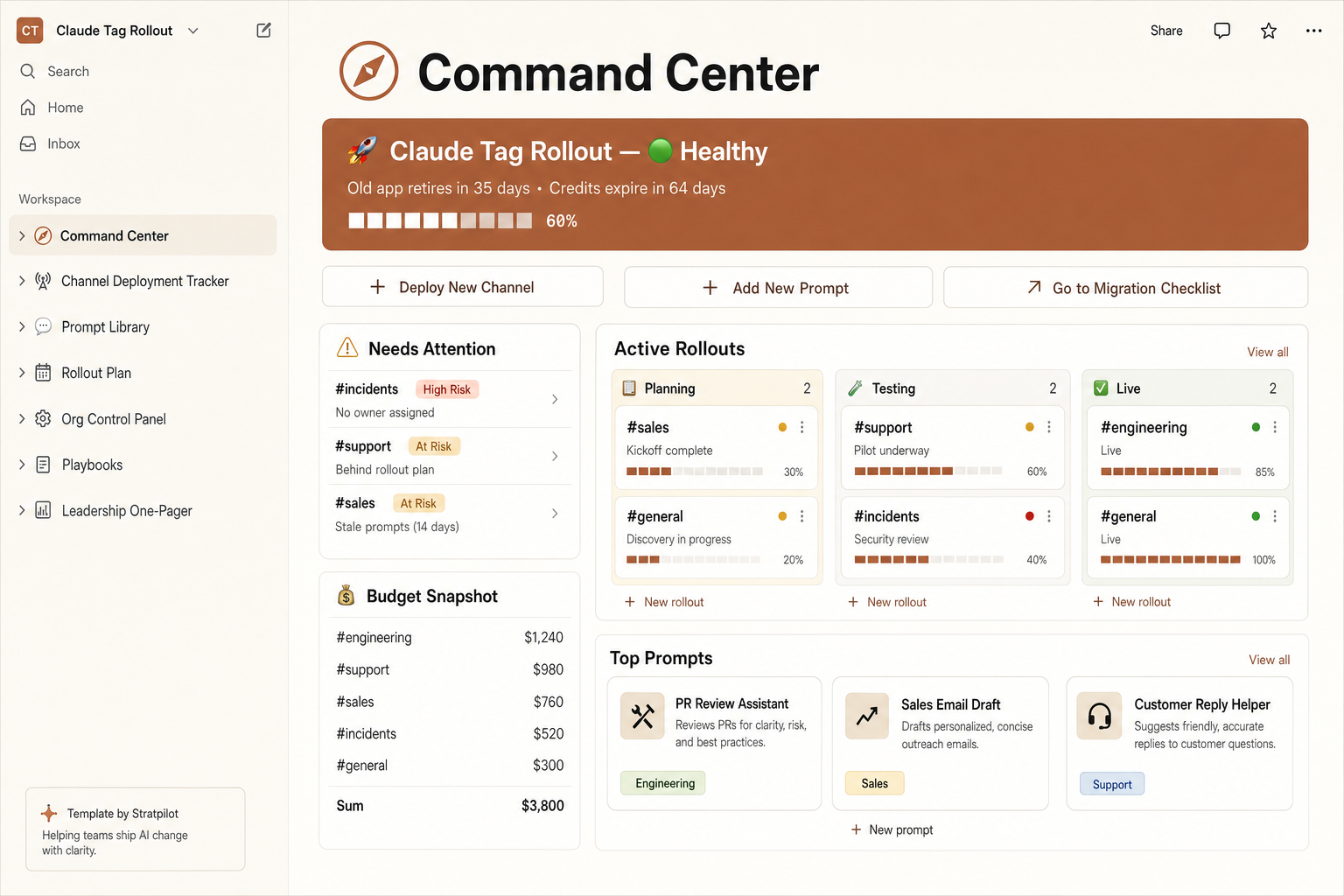
The steps get one workspace running. Rolling out across a team is where it gets messy — move from a solo checklist to a shared command center that tracks every channel's status, risk, and spend through August 3.
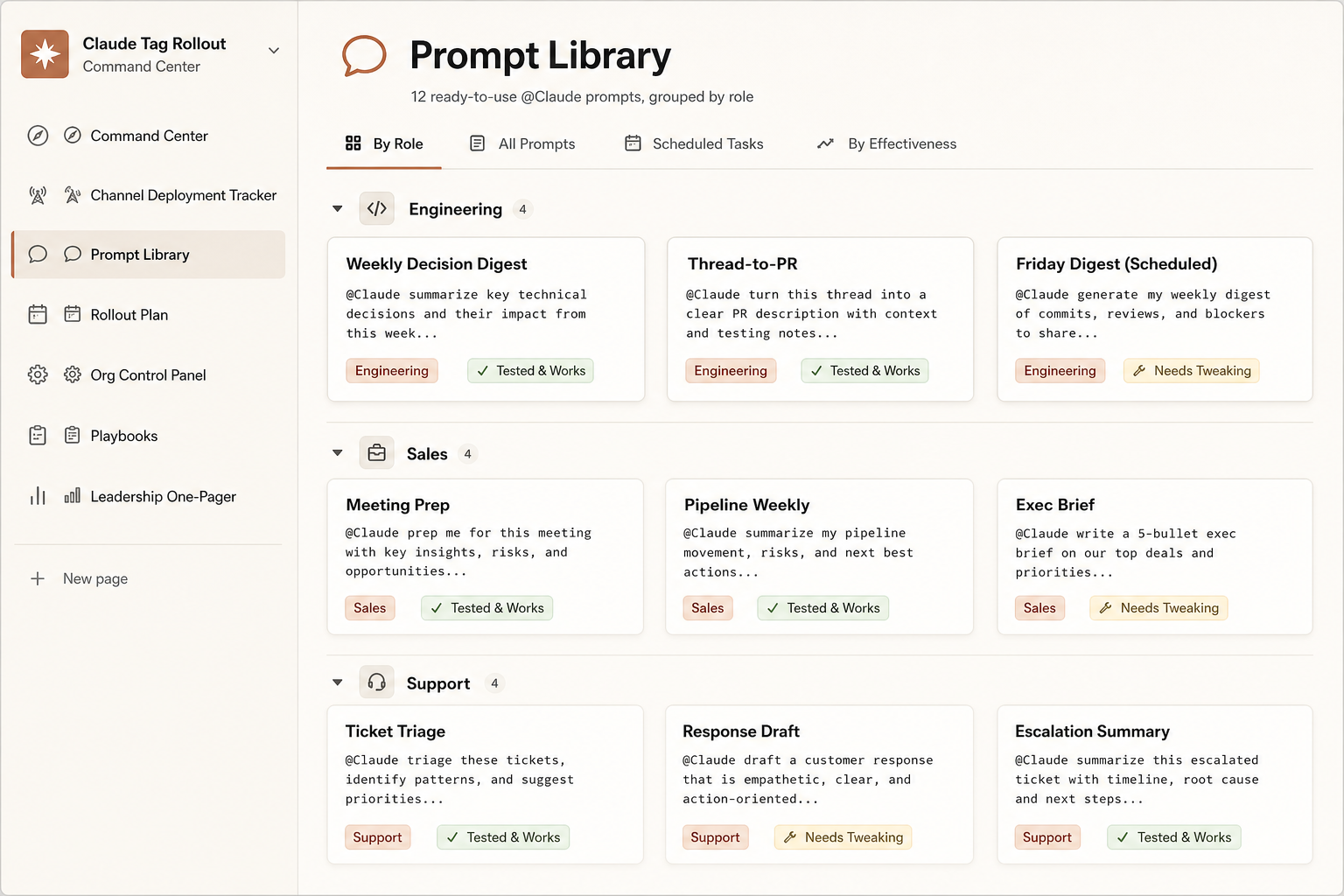
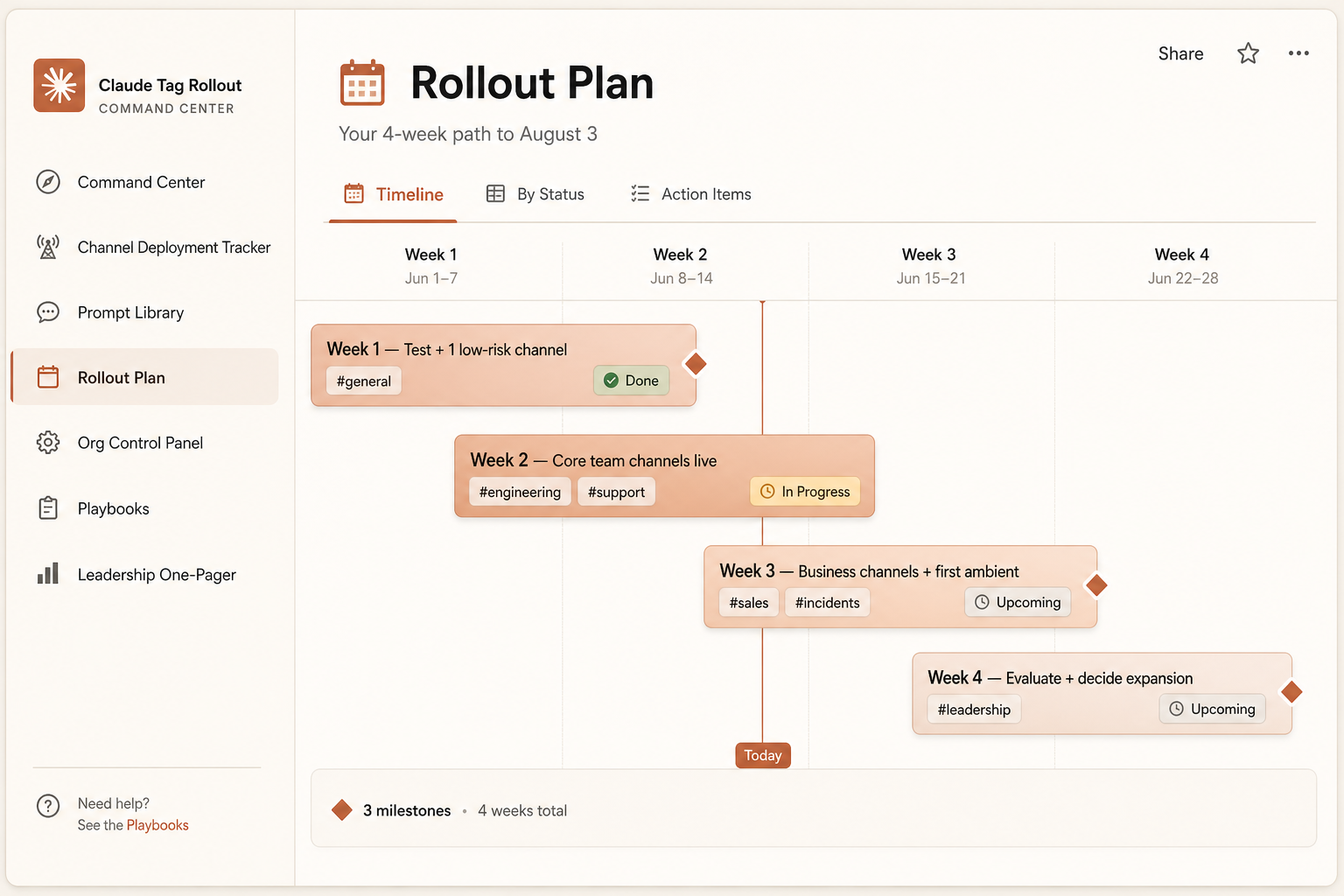
Pre-filled and ready the second you duplicate it: a channel tracker with risk flags, a live credit runway, a 4-week plan, 12 ready prompts, and a boss-ready one-pager.
- Channel tracker with auto risk flags
- Live credits burn bar + runway
- 4-week rollout timeline
- Leadership one-pager to report up
One-time $7 · pre-filled · 14-day refund. Independent template, not affiliated with Anthropic.
Get setup updates (and the Aug 3 reminder)
Claude Tag is in beta and the steps can change. We'll email you when setup details change, plus one reminder before the old app retires on August 3.
Sources & how we keep this accurate
The four-step setup is from Anthropic's official Claude Tag announcement; the command, pairing, spend-limit and access-bundle details are from hands-on coverage and may change during the beta. Last verified June 25, 2026.
Primary sources:
We are not affiliated with Anthropic or Slack. Always confirm current steps in your Claude admin console.